Configure escalation and assign teams
Escalation is configured by severity and by level. A level contains one or more steps, each with a channel and a delay; after a level's steps complete, Shankh can move to the next configured level. Levels define when Shankh notifies — teams define who.
AdminConfiguring escalation levels and their members requires Admin access.
Before you start
- Slack, Telegram or mobile push connected and tested.
- Teams created on the Manage Teams tab, with their members added.
- A clear idea of who should be reached first, and who is the backstop.
Understand the structure
Add a level
- Open Escalation and go to the Team levels tab.
- Select Add level.
- Give the level a name and a colour.
- Select the severity you are configuring.
- Add or edit the escalation steps.
- Choose the channels for each step.
- Set the delay before each step runs.
- Save the configuration.
Only use channels currently enabled for production delivery: Slack, Telegram and mobile push.
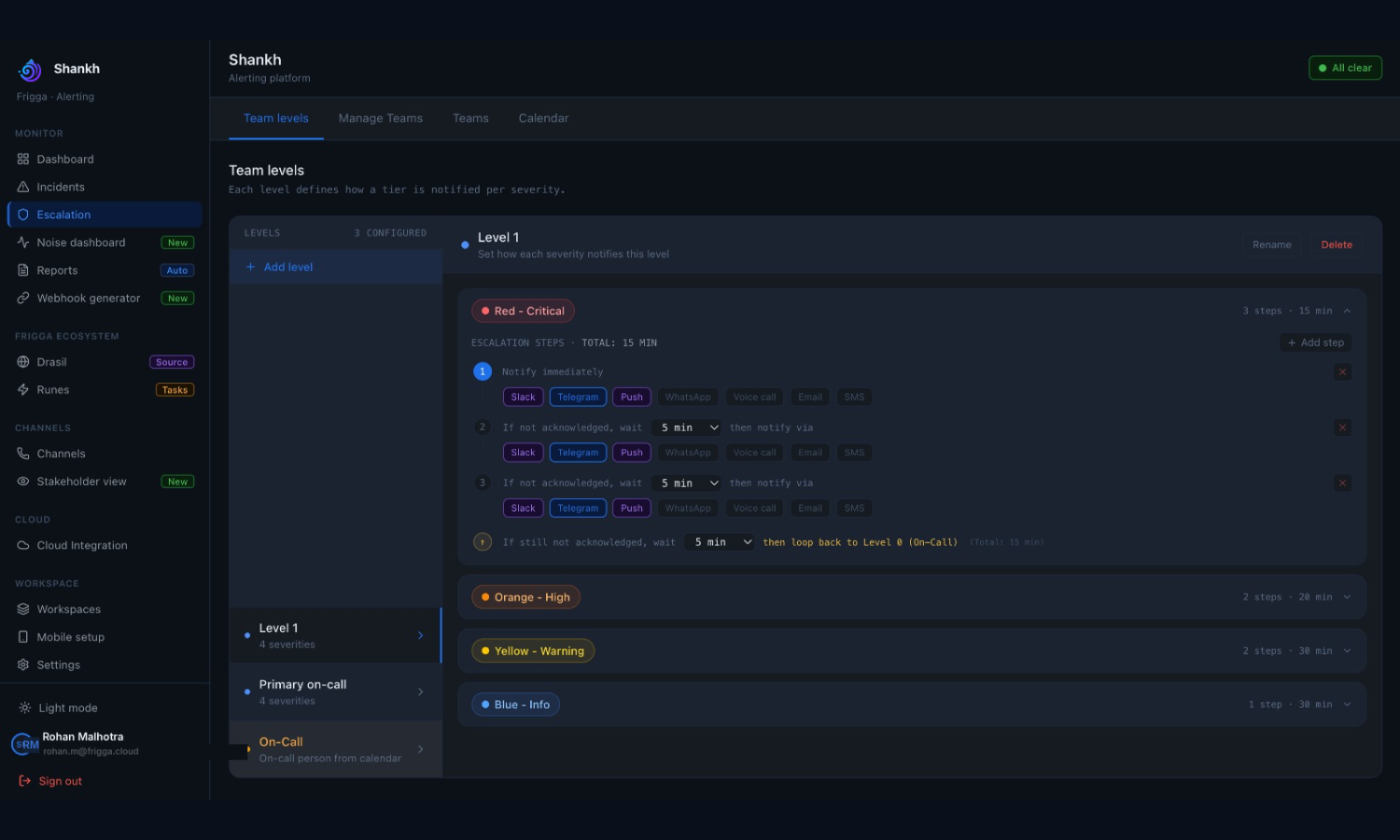
Level 0 is reserved for whoever the calendar has on call, so the levels you create start at Level 1.
Review the default timing
These are the current defaults and can be changed.
| Severity | Default timing |
|---|---|
| Critical and High | Two escalation steps, default interval 1 minute |
| Warning and Info | Step 1 after 2 minutes · Step 2 after 5 minutes |
Reference: the escalation policy object
A policy is a separate object from levels: a name plus ordered steps, each with a step number, a wait in minutes and its channels. It attaches to a workspace and reaches alerts through the alert rule — never through a team.
- Select New Policy in Escalation.
- Name it after the workspace or service pattern it serves.
- Add the steps in the order they should run.
- Set the wait in minutes before each step.
- Choose the channels for each step.
- Select Create policy.
Policies are not wired up in this build — there is no routed screen for them and the escalation engine does not read them. What actually pages people is the levels and their members, below. Treat this section as the shape of the object, not as live configuration.
Assign people and teams to the levels
A level can hold individual users, teams, or both — and more than one team if the level needs a wider audience.
- Select the escalation level.
- Add the users who should answer it.
- Add the teams that should answer it.
- Choose the notification channel for the step.
- Save, and repeat for each level.
| Level | Who it reaches |
|---|---|
| Level 0 | Whoever the calendar has on call — reserved, not editable as a level |
| Level 1 | The primary team or users who own the service |
| Level 2 | A secondary or wider team as the backstop |
Notification is cumulative: reaching level N notifies levels 1 through N plus the on-call responder. A later level widens the audience rather than handing over to it.
Verify the escalation path
- Read each severity's levels in order and name the people each one reaches.
- Confirm step 1 reaches whoever is on call right now.
- Confirm no level points at an empty team, and two consecutive levels do not reach only the same person.
- Confirm the total time to the last step is acceptable for that severity.
- Run the end-to-end test and let it escalate past step 1.
If nobody is on call, Shankh skips Level 0 and goes straight to Level 1 — so Level 1 must exist and must contain somebody, or the incident notifies nobody at all. The chain then loops back to Level 0 and keeps cycling until someone acknowledges.