Schedule on-call
Open Escalation and go to the Calendar tab. You assign a team to a date by dragging it out of the sidebar onto the day, so the workspace's teams have to exist before you can schedule anything.
Create an on-call assignment
- Open Escalation and go to the Calendar tab.
- Choose the workspace you are scheduling from the Workspace selector.
- Find the team in the Teams — drag to calendar list.
- Drag it onto the date it should cover.
- Confirm it appears on that day with its shift, such as 9am–5pm.
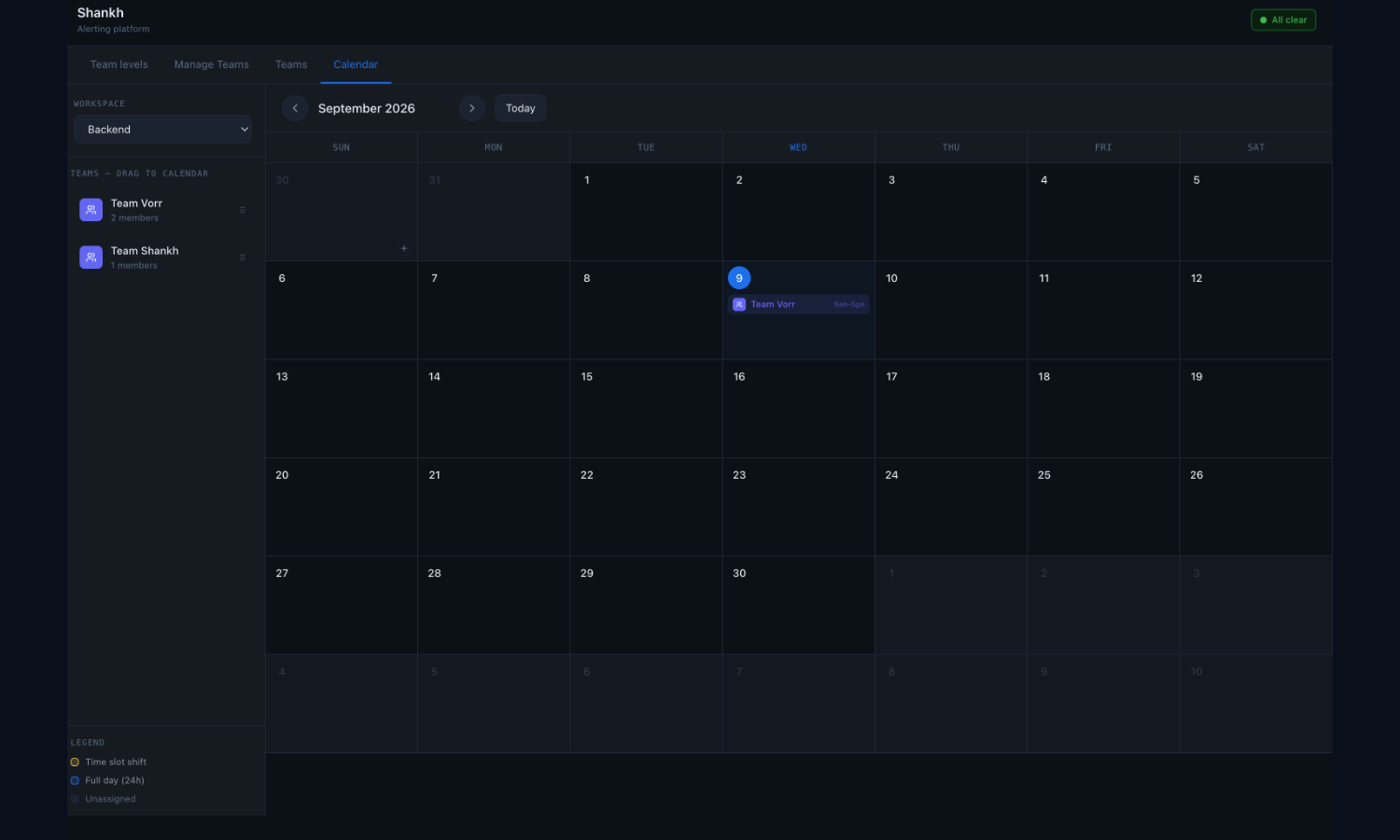
Each team in the sidebar shows its member count. A team with no members can still be dragged onto a date, and will cover nobody.
Read the legend
The legend under the sidebar tells you what each entry on a day means:
| Marker | Meaning |
|---|---|
| Time slot shift | Covers a set window of the day, such as 9am–5pm |
| Full day (24h) | Covers the whole day |
| Unassigned | The day has no cover |
Scan for unassigned days before the rotation goes live — an uncovered day is what sends an incident straight past Level 0.
Cover the whole period
There are no recurring or repeating assignments, so a rotation has to be laid out date by date. Use the month arrows and Today to move through the calendar as you fill it in.
Two shortcuts make that quicker:
- Select a team, then click each date it covers — every click writes one assignment.
- Use a single day's popover to put several teams on that date at once.
Clicking dates this way always uses the morning shift. If one of those dates needs a different shift, set that date individually afterwards.
Watch the clock, not the time zone
Shankh has no time-zone handling for shifts. A shift is a plain clock time, evaluated in the server's own zone and displayed in each viewer's local zone.
For a rotation spread across countries, agree what a shift means in one shared zone and write it into the shift name or your runbook — otherwise two engineers read the same shift as different hours.
Review overlaps and gaps
- Scan the calendar week by week for each workspace.
- Confirm every day that needs coverage has exactly one intended team on it.
- Remove unintended overlapping assignments so responsibility is unambiguous.
- Fill any date showing as unassigned before the rotation goes live.
A later escalation level is a backstop, not coverage. Do not rely on it to catch an unscheduled period.
Verify before going live
- Confirm which team is on call now for each workspace.
- Confirm that team has members, and that each of them has a working notification channel.
- Confirm they have paired the mobile app if push is in their escalation path.
- Run the end-to-end test.